Social Media Gear
Instagram posting app batch workflow
An instagram posting app lets you schedule and publish Reels and carousels from one self-hosted dashboard. Walk through the exact steps to prepare twelve videos and send them live on schedule.
Relevant product searches
These links point to current listings. Pricing and availability can change quickly.
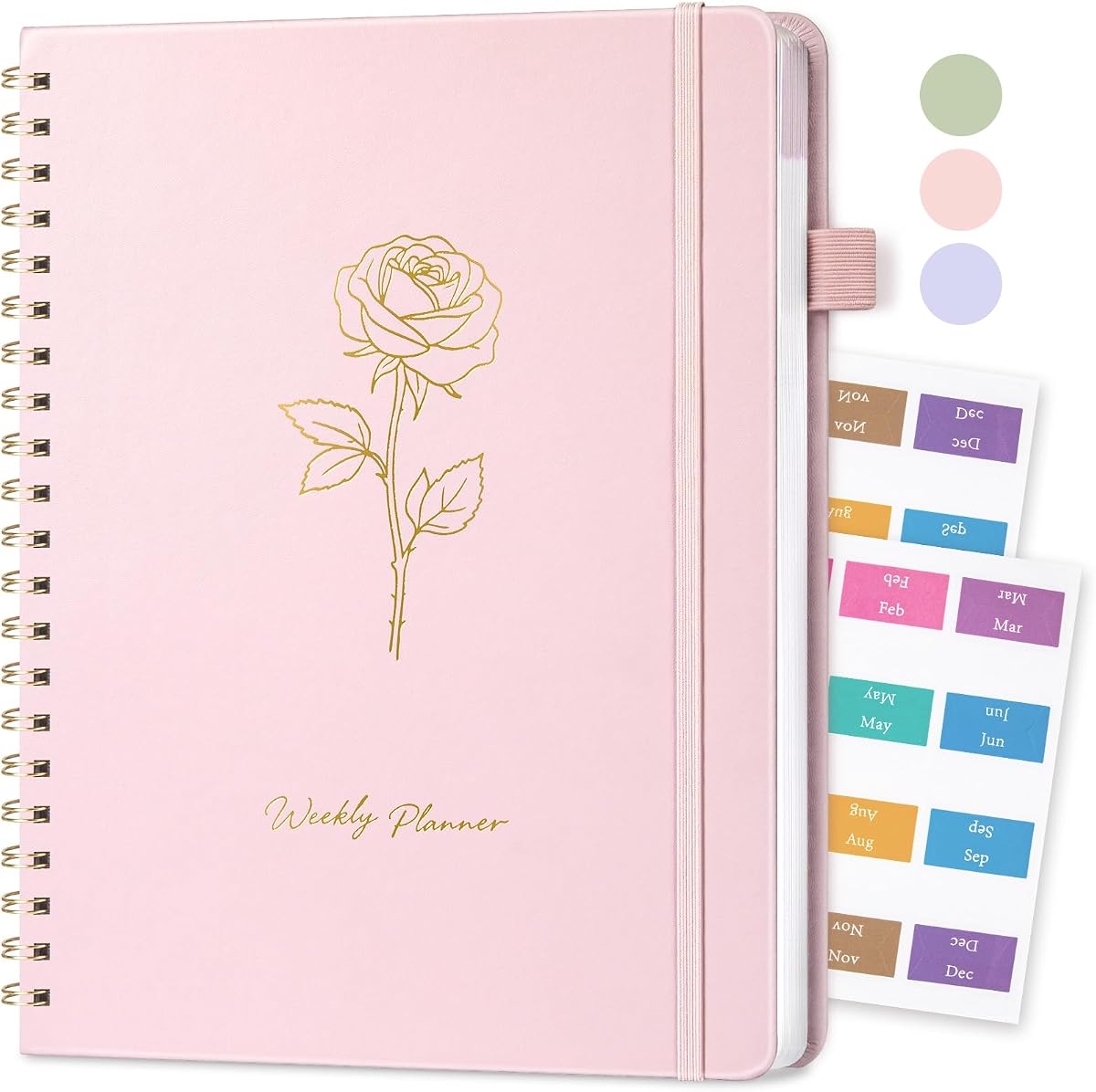
Undated Weekly Planner, 8.5"x11", A4 Size To Do List Notebook with Goal & Habit Tracker Organizer, 52 Weekly Planner Notebook with Spiral Binding for Office Home School Supplies
Helpful for keeping scripts, shot lists, batteries, and daily publishing work visible without adding another app.
- - Reusable planning surface
- - Cable and card storage
- - Compact desk footprint
You have twelve short videos ready for Instagram Reels and need them live by Friday morning.
Connect accounts in one place
Open the dashboard and head to Platform Settings. Add your Instagram business account using the official API flow. The same screen also accepts Facebook Pages, LinkedIn, and X credentials so every post can fan out without extra logins.
After the first connection finishes, test the link by sending a single photo. Check the post appears in your Instagram account within two minutes. Repeat for each network you plan to use this week.
Platform Settings stores tokens securely on your own server.
Prepare assets on the desk
Set your phone on a tripod with overhead arm. Record twelve 15-second clips at 1080 by 1920 pixels. Name the files reel-01.mp4 through reel-12.mp4. Drop them into a folder labeled 2026-07-09-batch.
Open Compose. Upload the first file, add a caption that includes three relevant hashtags, and set the first publish time to 08:15 local. Save the draft.
Build the queue
Return to Compose for each remaining clip. Change only the publish time and a single line in the caption. Keep the rest identical so the series feels consistent.
Use these exact publish times:
| Video | Day | Time |
|---|---|---|
| reel-01.mp4 | Friday | 08:15 |
| reel-02.mp4 | Friday | 12:30 |
| reel-03.mp4 | Saturday | 09:00 |
Save every draft. The list now shows twelve scheduled items.
Review and hand off
Switch to Dashboard. The calendar view displays each scheduled post as a card. Click any card to open the preview. Confirm the thumbnail, caption length, and chosen time.
If a teammate needs to approve captions, export the draft list as CSV and share the file. They can reply with changes before you push the final schedule.
Verify after publish
On Friday morning watch the first post appear at 08:15. Note the reach number in Instagram insights two hours later. Compare it against the same time slot from last week.
Repeat the check for the second post at 12:30. Adjust the next batch times if engagement drops below your average.
Compose keeps every draft and schedule in your own database.
Store finished files
Move the twelve mp4 files and their captions into an archive folder on your local drive. Keep the folder name tied to the publish week so future searches stay simple.
Check analytics the next week
Open Dashboard again and filter by Instagram. Export the seven-day report as CSV. Look at average watch time and save rate for the batch. Use those numbers to tweak caption length or posting hour for the following week.
Dashboard shows the raw numbers without third-party scraping.
Repeat the cycle
Clear the Compose queue. Record the next twelve clips on Monday. Follow the same naming, time, and review steps. The process now takes under ninety minutes once the first batch is complete.
Blog contains additional calendar examples for other networks.
Handle caption limits
Instagram allows 2,200 characters. Keep each caption under 1,800 so the full text displays without the "more" cut-off. Count characters inside Compose before saving.
Test cross-posting
After the Instagram queue runs, duplicate two of the drafts to Facebook and Threads. Change only the first hashtag to match each platform. Schedule both at the same hour as the original Reel.
Keep tokens fresh
Instagram access tokens expire after sixty days. Set a calendar reminder on day fifty to re-authenticate inside Platform Settings. The renewal takes thirty seconds and prevents missed posts.
Archive old schedules
At the end of each month, export the Dashboard history for that period. Store the CSV next to the video archive. This record helps when you need to compare year-over-year performance.
Privacy explains how your tokens and drafts remain on your server only.
Choose upload settings for consistent Reel delivery
Instagram Reels require specific technical parameters to avoid compression artifacts or platform rejections. Always export clips at 1080 by 1920 pixels with a 9:16 aspect ratio and 30 frames per second. Keep individual file sizes below 100 MB by using H.264 encoding and a bitrate around 5 Mbps. Before uploading the batch, run each clip through a quick local preview at full screen to confirm no black bars appear on mobile devices.
Create a reusable preset in your editing software with these exact values so every new batch starts from the same baseline. If you record on a phone, lock the orientation to portrait and disable stabilization features that can introduce unwanted cropping. After export, open the files in a media inspector to verify audio levels sit between -12 and -6 dB to prevent clipping during Instagram processing.
Account connections let you store these presets per network so cross-posted versions automatically adjust resolution without manual edits.
Set team approval workflows before scheduling
When multiple people contribute captions or select publish times, establish a clear hand-off process inside the platform. Create a shared draft folder visible to reviewers and add a required approval step that blocks publishing until every item receives a green check. Use the comment field on each draft to log requested changes, then update the caption directly before the final save.
A simple weekly checklist keeps the process repeatable:
- Confirm all video files match the naming convention reel-XX.mp4
- Verify each caption stays under 1,800 characters
- Cross-check publish times against the shared calendar
- Export the draft list as CSV for offline review
- Re-upload any rejected items with revisions noted
Once the checklist is complete, the owner can push the entire queue live in one action. This reduces last-minute edits and keeps the Friday morning publish window reliable.
Track rate limits and token health over time
Instagram enforces posting frequency limits that vary by account age and activity level. Space Reels at least 30 minutes apart during peak hours and avoid more than eight posts in a single 24-hour window when testing new content. Monitor the Platform Settings page for token expiration warnings and set a recurring reminder 10 days before the 60-day mark.
If a token refresh fails, the queue pauses automatically and sends an in-app alert. Re-authenticate through the same API flow used at initial setup; no drafts are lost during the process. Export the token status log monthly and store it with your performance CSVs so you can correlate any missed posts with authentication gaps.
Token renewal guide shows the exact steps inside Platform Settings and lists common error messages with direct fixes.
Build reusable caption templates for series content
Maintain a small library of caption structures that match your typical Reel series. One effective format opens with a question, states the main tip in one sentence, then ends with three targeted hashtags. Duplicate the template into new drafts and swap only the variable line each week. This keeps caption length consistent while still allowing topic-specific details.
Store templates in a dedicated folder labeled “captions” alongside your video archive. When starting a new batch, copy the template text into Compose, adjust the time slots, and save. Over several months the folder becomes a reference for what phrasing drove higher save rates in past exports.
Data exports include caption text alongside reach and save metrics so you can quickly identify which template lines performed best.
Create a content calendar template
A reusable calendar template prevents last-minute scrambling when you need to fill twelve or more slots each week. Start by listing the core themes your account covers, such as product tips, behind-the-scenes clips, or customer stories. Assign one theme to each day of the week so the feed maintains variety without requiring fresh decisions every batch.
Build the template in a spreadsheet with columns for date, theme, video file name, caption seed, and first hashtag. Copy the same structure into a new tab each month and adjust only the dates. When you sit down to record, open the current tab and follow the theme list in order. This removes the blank-page problem and keeps the series consistent across weeks.
calendar template shows a sample layout that already includes the publish-time offsets used in the earlier examples. Import the CSV version directly into Compose so the time slots and caption starters populate automatically.
Troubleshoot common posting issues
Even with correct settings, occasional uploads fail because of network hiccups or format edge cases. When a Reel does not appear at the scheduled time, first check the status column in Dashboard for the exact error code. Common messages include “format mismatch” or “token refresh required.”
For format mismatches, re-export the clip using the preset you created earlier and verify the audio levels sit inside the -12 to -6 dB range. If the token message appears, open Platform Settings and run the renewal flow before the queue resumes; no drafts are lost during this step. Keep a running note of each error and its fix in a shared document so teammates can resolve the same issue without repeating the diagnosis.
support docs lists the full set of status codes and the one-click actions that clear them. Review the log weekly and adjust your export preset if the same mismatch appears more than twice in a month.
Scale to multiple accounts
Once a single account runs smoothly, the same workflow extends to additional profiles without duplicating effort. Add each new business account through the same API flow in Platform Settings. The dashboard then displays separate queues that you can toggle between using the account switcher at the top of Compose.
When planning batches for two accounts, duplicate the video files and adjust only the caption seed and first hashtag to match each audience. Schedule the second account’s posts thirty minutes after the first to stay inside typical rate limits. Export a combined CSV from Dashboard at the end of the week so performance numbers remain easy to compare side by side.
multi-account guide explains how to assign different team members permission levels so one person handles scheduling while another only reviews captions.
Set up automated reminders for token and backup tasks
Manual calendar reminders work, but an in-app rule can trigger notifications automatically. Create a rule inside Platform Settings that sends an alert fifty days after the last successful token refresh. Pair it with a second rule that reminds you to export the month’s Dashboard CSV on the last business day.
Store both the token log and the CSV exports in the same archive folder you already use for finished video files. This single location makes year-over-year comparisons quick when you open the folder and sort by date. If you ever need to restore a schedule after a device change, the exported CSVs contain every caption and timestamp in plain text.
backup settings lets you choose the exact folder path and file-naming pattern so the exports land in the right place without extra clicks each month.